






When Windows update fails it’s usually because of corrupted download files, low disk space, a required service that can’t start, a driver conflict, or third-party software getting in the way. The fix depends entirely on what actually broke, whether that’s the download, the installation, or something deeper in Windows itself.
If you’re having trouble installing the latest updates, this guide shows you how to identify the cause and fix it. We’re going to cover what common errors actually mean, provide step-by-step fixes for downloads that won’t finish, explain how DISM and SFC can repair corrupted system files, and show you what to do when the same update keeps failing no matter how many times you retry it. Prevention gets its own section too, so this doesn’t become a recurring problem. Last but not least, you’ll understand how Action1 helps you skip all the hard work by streamlining and automating Windows updates across 5, 10, or even 100,000+ endpoints.
Pre-Update Checklist
Before installing Windows updates, make sure:
- Your system meets the minimum requirements for the update.
- You have at least 10 to 20 GB of free disk space.
- Your internet connection is stable.
- You’ve backed up important personal files.
- All external devices are disconnected.
- Your system is running on AC power if you’re using a laptop.
Never worry about a failed Windows Update again. Action1 takes on the hard work, and it’s free for up to 200 endpoints, fully loaded, forever. Sign up for free, or watch the demo and see how little you have to do to keep every endpoint up to date.
Why Do Windows Updates Fail?
Windows updates fail because something breaks down somewhere in the updating process itself, which is made up of four steps: downloading the files, verifying they’ll work on your system, installing the components, and restarting the system. When there’s interruption or corruption during any of these steps, the updating process fails and gives you an error code.
In reality, the most common issues behind these error codes are corrupt, damaged, or incomplete update files, not enough disk space, connectivity issues reaching Microsoft’s servers, problems with the Windows Update service itself, driver or hardware conflicts, damaged system files, third-party software interference, and compatibility or prerequisite gaps. Most, if not all, are easily fixable, but only when you know which one you’re actually dealing with.
Corrupted or Incomplete Update Files
Corrupted files or incomplete update files are the ones that get broken during the download process because of interruption, a dropped connection, sudden shutdown, or a damaged local cache. In any case, you won’t be able to update your Windows because the file isn’t fully verified, so it’ll either fail at the very start of the installation process or get stuck retrying the same broken download, making it load for a long time and, at the end, display a particular error code.
Insufficient Disk Space
Not enough disk space will always cause an update to fail, because Windows first downloads the update, then unpacks it, which multiplies its size, applies the changes, and temporarily keeps your old files as a fallback in case something goes wrong. So, the installer file of the update might be 1GB, but after all these processes, it’s likely to need five or ten times more free storage space. Keep in mind that feature updates, which come out once or twice a year, are the largest ones, so they’ll typically need 10GB or even more just for the installer file.
If you don’t have enough free disk space, the update might get downloaded but then won’t be able to install, or it won’t be pulled fully at all. You’ll see an error clarifying that with a specific code.
Internet or Microsoft Update Connectivity Issues
If your internet connection is metered or weak, you won’t be able to update your Windows 11. Any connectivity issue stops Windows Update from reaching Microsoft’s servers to check for, download, and verify updates in the first place. A weak or unstable connection is one of the most common reasons the download stalls or fails partway. On the flip side, firewall rules, proxy settings, or a metered connection can block the update process without even showing you an error code.
Windows Update Service or Component Problems
If the Windows Update service or the Background Intelligent Transfer Service (BITS) has any kind of problem, it’s going to be impossible to update your Windows 11, because the tool used for keeping your system up to date just won’t be functional. If either stops, hangs, or gets misconfigured, Windows Update can’t work properly, even if your internet connection is fine or you’ve got more than enough space for the update. In those cases, your download process won’t start at all, or it’ll start but load forever without reaching the 100 percent mark.
Driver or Hardware Conflicts
If Windows 11 conflicts with a driver or any of your hardware, you won’t be able to finish the update until that conflict gets resolved. These sorts of problems are typical during feature updates, because a lot more processes are being started then, and Windows itself tries to change, renew, or fully replace existing services and deeper parts of the system compared to when installing a security update. An outdated graphics or storage driver, in particular, is a frequent cause of installation failures or post-update instability.
Damaged Windows System Files
Damaged Windows system files stop updates from completing because the OS relies on a healthy set of core files to apply changes correctly and successfully deploy the update. If even one file’s missing or corrupted for any reason, the installation can’t complete and it’ll fail, showing you a specific error code. Those issues are caused by an interrupted update, a crash, an outage, or disk errors.
Antivirus, Firewall, VPN, or Third-Party Software Conflicts
Antivirus programs, firewalls, VPNs, or third-party software can block Windows Update by mistaking its background processes for suspicious activity, especially if you’ve got overly aggressive or outdated security tools. From then on, updates can’t be downloaded, installations get blocked, or mid-update restarts happen. VPNs, specifically, can disrupt or slow down your internet connection, so that prevents successful updates too.
Update Compatibility or Prerequisite Problems
Updates can fail if compatibility or prerequisite problems pop up. When your system doesn’t meet what a specific update needs, like a hardware requirement or a driver that Microsoft sees as incompatible with that release, the result’s always the same: unsuccessful update. In cases like this, Windows might not offer the update at all, because of a compatibility safeguard hold. Just keep in mind, these issues usually happen during feature update installation.
Windows Update Failed, Won’t Download, or Won’t Install: What’s the Difference?
“Won’t download” means the files never fully arrived at your endpoint. “Won’t install” means the files were successfully pulled, but the installation process couldn’t finish. Knowing exactly what failed, not just that it “failed,” points you toward the right fix for that particular problem.
No matter what the problem is, keep one thing in mind when you’re trying to fix a failed update. Always choose “Restart,” not “Shut Down,” when troubleshooting. Windows 11’s Fast Startup feature keeps parts of your system state saved between sessions, so “Shut Down” doesn’t fully reset it. That lets whatever was already broken carry straight into your next attempt.
Windows Update is Not Finding Updates
Windows Update stops finding updates because of a paused or stopped update service, a network issue, or, in a business network, a WSUS (Windows Server Update Services) policy controlling what your device sees. Now, pay attention to a fourth cause that gets skipped in most guides: safeguard holds. This process holds specific updates from devices with a known driver, app, or hardware conflict. At the same time, when you check, you’ll see the label “You’re up to date” with no on-screen explanation. That’s a protection, not a bug.
It prevents installing the update to avoid the conflict or future problems you might experience because of it. So, if a specific feature update isn’t being offered to your device even though it should qualify, that’s when it’s worth checking for an active safeguard hold. These affect feature updates specifically, not your regular monthly security updates.
Windows Update is Stuck Downloading
An update frozen at 0 percent, stuck at a random percentage, or crawling painfully slow is usually the result of a weak connection, low disk space, or a corrupted update cache. A less obvious cause might be that Windows sometimes queues several interdependent updates together, and when their install order gets tangled, the whole download stalls waiting on a piece that hasn’t finished yet. If you see nothing moving for an hour, that’s a sure sign something’s wrong and the update is stuck.
Windows Update Downloads but Fails to Install
An update that downloads fully but fails during installation points to corrupted system files, a driver conflict, or security software blocking it. Since temporarily disabling third-party antivirus can help resolve update issues, it’s worth ruling out before assuming the cause is corrupted files or a driver conflict. There’s also a chance this is caused by low disk space. When installing an update, Windows needs space for the new files and a full backup of what it’s replacing, since that backup is what lets you uninstall the update later if the new one causes instability. So, you might have enough space to download the installer, but not enough for completing the chain of processes during the updating process itself.
Windows Update Installs but Fails After Restart
If you see the label “Undoing changes made to your computer” after what looked like a successful install, it means the update failed during a specific reboot-time step. That’s when Windows uses the restart to apply the latest file changes, then automatically rolls back to protect your system. So, if your OS hits a locked file, a driver conflict, or a timeout during that reboot phase, the rollback triggers right away. That’s not by coincidence. It means that something specific and critical enough has interrupted that handoff.
Windows Update Keeps Failing Repeatedly
An update that repeatedly fails, no matter how many times you run it, means there’s serious problem that won’t go away just be repeating the procedure. See the “Identify the Failed KB Number and Error Code” section below for how to track down the exact cause using your KB number, error code, and the CBS log.
Common Windows Update Error Codes and What They Mean
| Error code | What it means | What it usually points to |
|---|---|---|
| 0x80070002 | Windows can’t find a file it expected to use during the update. | A missing or inaccessible update or servicing file. |
| 0x80070003 | Windows can’t find or access a required path. | A missing or inaccessible servicing, driver, or update path. |
| 0x80070005 | Windows Update was denied access to a file, folder, registry key, or another required resource. | Permissions or security software interfering with the servicing process. |
| 0x8024402F | Windows Update processed external update metadata, but part of that processing completed with errors. | A temporary communication drop or other issue with Microsoft’s update servers. This often resolves on its own, but corrupted update components can also cause it. |
| 0x80244022 | Windows asked Microsoft’s servers for the update, and the answer it got back was “service unavailable, try later.” | The update server being temporarily down, or a network or proxy problem on your end. |
| 0x80080005 | A background process Windows Update relies on failed to start. It shows up as “Server execution failed.” | A Windows Update-related service or component that couldn’t initialize correctly. Permissions issues or security software interference are common contributing causes. |
| 0x8024402F | Windows can’t find the source files needed to repair or install a component. | Missing repair files or a problem with the Windows component store, often tied to a missing.NET Framework 3.5 component. |
| 0x80073712 | Something in Windows’ internal component store is damaged or out of sync. | Damaged Windows servicing components. |
| 0x800F0922 | One or more servicing installers failed while Windows applied the update. | A deeper install problem, most often not enough free space or a small EFI system partition. The CBS log may be needed to narrow it down further and tell you where exactly the problem is coming from. |
| 0xC1900101 | Windows rolled back an upgrade to protect your system. | The cause is almost always a driver that conflicts with the upgrade, though hardware or third-party software can be the culprit too. |
| 2149842967 (0x80240017) | Windows determined the update isn’t applicable to this system. | Wrong version of Windows, wrong build, wrong architecture, or a missing prerequisite. And yes, 2149842967 is just 0x80240017 written out in plain numbers instead of hex. |
Take the stress out of patching and forget about manual Windows Update headaches for good. With Action1, you can automate the entire process, see every update in real time, and focus on what matters most. Experience it for yourself by signing up free or checking out the demo to see just how effortless it is to keep your systems secure and fully updated.
How to Fix Update Errors in Windows?
When Windows Update installation repeatedly fails, a systematic troubleshooting approach is required to restore normal functionality. The following sequence of remediation steps will guide you through resolving persistent Windows Update errors until the update process is successfully completed.
Restart the Computer and Run Windows Update Again
Restart your computer first, then run the Windows Update scan again before moving to deeper troubleshooting steps. A restart can complete pending update operations and also clear temporary system state that may be interfering with the next attempt. Once your computer is back online, go to Settings, then Windows Update, then Check for updates. After the update attempt finishes, confirm that it installed correctly this time.
Reset Windows Update components
Sometimes, the Windows Update components become corrupted and can be a reason for a failed update. You can resolve this issue by following these troubleshooting steps:
Step 1. Open Command Prompt from the Start Menu. In the search bar, type Command Prompt, then right-click on the icon and choose Run as administrator.
Step 2. Execute the following commands sequentially, pressing Enter after each. Wait for each command operation to finish before entering the next command.
net stop wuauserv
net stop cryptSvc
net stop bits
net stop msiserver
ren C:\Windows\SoftwareDistribution SoftwareDistribution.old
ren C:\Windows\System32\catroot2 catroot2.old
net start wuauserv
net start cryptSvc
net start bits
net start msiserver
Step 3. Once all the commands above have run successfully, restart your computer and try updating your Windows again.
Check for Driver or Hardware Conflict
As mentioned earlier, the connected peripheral devices may cause conflicts and be the reason why Windows is unable to update. Disconnect all printers, USBs, and webcams, reboot your PC, and then try to run Windows Update again.
Free Up Drive Space
Your system must have enough storage space to process and install updates. Windows Update requires at least 16 GB free for a 32-bit OS upgrade, while Microsoft lists at least 20 GB for a 64-bit OS upgrade. For regular security, cumulative, quality, or driver or servicing stack updates, the amount of free space required varies depending on the update. If available disk space falls below the required threshold, the update installation will fail. So, you have to clear unnecessary files, move data to external storage, or use disk cleanup tools to ensure sufficient space for the update process. Then restart your system and attempt the update again.
Try the Windows Update Troubleshooter Tool
Windows 11 comes with a designated tool to assist in troubleshooting Microsoft update issues. Type “troubleshoot” into the taskbar search field for the fastest way there, or go to Settings>System>Troubleshoot>Other troubleshooters. Once you run Windows Update Troubleshooter, follow the on-screen instructions it provides.
Resume Paused Updates
Step 1. Go to Settings.
Step 2. Click Update & Security.
Step 3. Click Windows Update.
Step 4. Click the Advanced Options button.
Step 5. Switch the Pause Updates toggle off.
Step 6. Restart your computer.
Step 7. Rerun “Windows Update.”
Erase Software Distribution Log
Step 1. Restart the computer in safe mode.
Step 2. Open File Explorer and navigate to C:\Windows\.
Step 3. Locate and delete the Software Distribution folder.
Step 4. Restart your computer and run Windows Update again.
Download the Latest Feature Update from Microsoft
When Windows Update keeps failing, you should consider visiting the Microsoft site to download the update file. Once you have downloaded the update, run it manually.
Run the System File Checker (SFC) Scan
The System File Checker is a built-in Windows diagnostic tool. Also known as “SFC scan,” it’s your fastest method to fix problems caused by corrupted system files. Run it to attempt fixing any potential issues with Windows installation.
- To run SFC:
Step 1. Open Command Prompt as administrator.
Step 2. Type sfc /scannow and press Enter.
Step 3. Wait for the SFC scan verification to reach 100% before closing Command Prompt.
Step 4. Restart your system if required.
Restore Windows from a Restore Point
If previous troubleshooting steps fail to resolve Windows update problems, we suggest checking for a Restore Point and, if one is available, starting a restore operation from it. Bear in mind that System Restore only affects system files, installed programs, and Windows settings. It doesn’t restore personal files such as documents, photos, emails, or downloads.
Use it to restore the device to a state when the Windows Update was working correctly. After the restore completes and your computer restarts, Windows will typically display a confirmation message saying that System Restore completed successfully. You can then update the OS to the latest version from that point. If the problem persists, then more drastic measures, such as reinstalling Windows, might be necessary.
How to Fix a Windows Update Download Error
If a Windows update won’t download, you need to check the services responsible for updates, clear only the downloaded update cache, rule out network or proxy problems, and then retry the specific update manually if the problem still occurs.
Check Windows Update and BITS Services
First, check that the Windows Update and Background Intelligent Transfer Service (BITS) aren’t disabled and can start when Windows needs them. To do this:
- Step 1. Press Windows key + R. In the Run dialog, type “services.msc” and press Enter.
- Step 2. Find Windows Update and Background Intelligent Transfer Service in the list.
- Step 3. If a service is running, you can restart it as a troubleshooting test. If it isn’t running and Windows Update is failing, right-click it and select Start.
- Step 4. Make sure the Startup Type of each service is set to “Automatic.”
If that doesn’t resolve the issue, here are more troubleshooting steps you should try.
Clear the Windows Update Download Cache
Sometimes you can start downloading an update, then the process gets interrupted by an outage, connectivity issues, or for another reason, and Windows will keep these broken files. That means it’s possible to keep retrying the same broken download. In this case, you must clear that cache, which will allow your OS to pull a fresh copy instead of reusing corrupted or incomplete update files.
Note that this isn’t a full Windows Update component reset, but just cache cleanup. To execute this process, you have to:
- Step 1. Open Command Prompt as administrator.
- Step 2. Run the following commands one by one:
net stop wuauserv
net stop bits
rd /s /q %windir%\SoftwareDistribution\Download
net start bits
net start wuauserv
- Step 3. Close Command Prompt and restart your computer.
- Step 4. Click on the Start Menu, then select “Settings.”
- Step 5. Go to Windows Update and click on “Check for updates.” If the cache was the cause, your OS should now start downloading a fresh copy of the update.
NOTE: For those of you that don’t know, the SoftwareDistribution\Download folder is where your Windows temporarily keeps downloaded update files. And even Microsoft advises clearing this folder now and then, especially when dealing with update problems that might be caused by corrupted or partial downloads.
Check Network, Proxy, VPN, and DNS Connectivity
If Windows Update still can’t download files, you must check the connection Windows itself is using, not just if you can open a website and see if it loads properly. Pay attention to this easy step-by-step process:
- Step 1. Disconnect and reconnect your network, be it Wi-Fi or ethernet.
- Step 2. Temporarily disconnect a VPN if you don’t need it for access, and see if this is the reason blocking the update in the first place.
- Step 3. Open Start Menu, go to “Settings”, then “Network & internet,” then “Proxy” and check for an old or incorrect manual proxy configuration. But never make any change to a managed proxy or VPN configuration if the computer belongs to your company, without checking with your IT team first.
- Step 4. Pay attention and check your computer’s date, time, and time zone. This is necessary since Microsoft lists incorrect time settings as another condition that can conflict with Windows Update. So, go to Settings, then Time & Language, then Date & Time. Enable automatic time and time-zone settings, and select Sync now if the clock is wrong. Despite that, this is rarely the case, but it still deserves your attention.
NOTE: First of all, Windows Update Agent uses system networking components, including WinHTTP in specific scenarios, and an incorrectly configured proxy can prevent the update client from reaching its source even when your internet connection is strong. That’s why proxy-authentication and WinHTTP configuration errors can also cause Windows Update failures. So, you might have a perfectly working internet connection, but a problem blocking these essential Windows configurations.
Second, on Windows 11, Delivery Optimization is also part of downloading Windows Update content. So logically, if ordinary internet access works but update downloads repeatedly stall, especially on a business network, that’s an obvious red flag that the firewall or proxy may be interfering with Microsoft update or Delivery Optimization endpoints.
But that’s not all. Delivery Optimization downloads content in pieces using HTTP byte-range requests. So, a proxy that strips or modifies those requests can interfere with update delivery even though normal web traffic looks completely fine. That basically means, if your updates are failing across several company devices behind the same proxy, that’s something worth handling directly with your network administrator.
Third, DNS deserves a check too. Because if your device uses a custom DNS resolver, an ad-blocking DNS service, or a filtered corporate DNS server, it can absolutely fail to resolve the domains Windows Update actually needs, causing downloads to hang for hours with no error message at all.
Retry the Update Manually
You can try to install the update manually from the Microsoft Update Catalog by doing the following:
- Step 1. Open Settings, then go to Windows Update, then Update history, and find the failed update’s KB number, so you know what to search for directly in Microsoft’s Catalog.
- Step 2. Search for that exact KB in the Microsoft Update Catalog.
- Step 3. Choose the package that matches your current Windows operating system version and architecture, such as x64 or ARM64
- Step 4. For a standard .msu package, download it and use the Windows Update Standalone Installer to start the installation.
What to do When Windows Update Keeps Failing
If Windows Update keeps failing over and over again, you have to pin down three things first. The KB number of the update, the error code you see, and the stage where it’s actually breaking. Once you’ve got that information in front of you, check it against Microsoft’s own release health data before attempting any fixes, because what worked for a different failure doesn’t mean it’s going to work for you. So, from there, work least invasive to most invasive options:
- Reset Windows Update Components.
- Repair Windows with DISM and SFC.
- Use an in-place repair as a last resort.
Keep in mind that for feature updates specifically, you must check for a compatibility safeguard hold before forcing anything past it, since Microsoft may be intentionally withholding that update from your device.
However, these are the things you must do when updates keep failing:
Identify the Failed KB Number and Error Code
Check the exact KB number and error code first by going to Settings, then Windows Update, then Update history, and there you’ll find both.
For deeper detail, do the following
- For scan or download problems: Generate a readable log with Get-WindowsUpdateLog in PowerShell.
- For servicing or installation failures: Check C:\Windows\Logs\CBS\CBS.log directly and search for the line tied to your KB number.
That’s very important because, in reality, two updates can fail at the exact same percentage for completely different reasons, so the code is what actually tells you which one you’re dealing with. It just helps you diagnose the problem immediately.
Reset Windows Update Components
Reset Windows Update’s components by using the procedure covered earlier: stop the services, clear the cache stored in the SoftwareDistribution and catroot2 folders, restart the services, and reboot. This clears and rebuilds Windows’ local update data without touching installed updates or your personal files.
Repair Windows Before Retrying the Update
You can repair Windows components responsible for updating your OS by running DISM and SFC scans. So what you have to do is open the command prompt as administrator and run dism.exe online cleanup image with the RestoreHealth option:
- DISM /Online /Cleanup-Image /RestoreHealth
- sfc /scannow
Bear in mind that Microsoft recommends running the commands in that order, since DISM repairs the component store that SFC can then rely on to fix broken files. Running SFC first isn’t necessarily useless, but if the component store itself is corrupted, SFC won’t have a healthy reference to check your files against. The DISM process pulls its repair source from Windows Update itself, so if your update client is seriously broken, DISM may need a separate repair source pointed at instead, like a mounted Windows ISO.
Use an In-Place Repair or Recovery Option as a Last Resort
On Windows 11, go to Settings, then System, then Recovery, and click on Fix problems using Windows Update, then Reinstall now. This downloads a repair copy of your same OS version and reinstalls it while keeping your apps, files, and settings, though it’s still worth backing up anything important first, just in case. If that option’s missing, which happens on some managed devices, an in-place repair using matching Windows installation media is the next step before a clean reinstall.
But if you’re triggering a clean reinstall, make a backup of your personal files, because they’re going to be lost for good. However, a tip I can give you is always create a backup of your important files before starting both repairs and reinstalls, because during the repair things can always go wrong for one reason or another, and the process can switch from repair to reinstall. So, do yourself a favor and create a copy of your files. That will prevent losing valuable photos, documents, and all kinds of important files.
How to Fix Failed Windows Updates Remotely with Action1
You can use Action1 to troubleshoot and redeploy failed Windows updates remotely across your managed endpoints. It gives you centralized visibility into missing updates, deployment status, ad Windows update configuration, while letting you automate retries and remediation instead of chasing problems blindly on each and every endpoint.
You can get Action1 up and running in about five minutes. Create your account, deploy the agent to the endpoints you want to manage, and start deploying updates autonomously. Action1 is free for up to 200 endpoints, fully loaded, forever, and it’s cloud-native, so you don’t need to spend a single dollar on VPNs or any type of additional hardware.
Once you’ve got things sorted around agent deployment, your dashboard will give you real-time data about each system you manage. You’ll see their installed software, existing vulnerabilities prioritized by CVSS score, missing updates, hardware specs, MAC address, IP address, and much more.
Then you can create your first automation for autonomous deployment. A feature called update rings lets you create groups of endpoints, called rings, set success rates and deployment counts, and only stable updates meeting those thresholds continue to the next ring, while problematic ones get stopped automatically. That directly means faster deployments with less downtime risk.
To further accelerate update installation, Action1 uses peer-to-peer patch distribution. This minimizes bandwidth constraints by using an approach where a single endpoint in a local network downloads a particular patch, then shares it with the rest of the systems on that same local network. In reality, this means small or large updates each get deployed faster, without breaking or slowing down your operations.
If you’re having any problems with Windows updates, Action1 is the best solution because you get the ability to use an independent source to pull updates from, automate the patching process end to end, schedule it, and at the end of the day, generate an audit-ready report using the 100 plus built-in customizable templates you’re equipped with.
For your convenience, we’re going to show you a simple step-by-step guide on how to deploy any kind of Windows updates. We’ll use a Windows 11 Feature Update as an example and deploy it.
Step 1. Log in or sign up for Action1 and set up your account.
Step 2. After logging into your existing account or completing new account registration, navigate to “Software Repository” in the sidebar and select “Windows 11 Feature Update.”
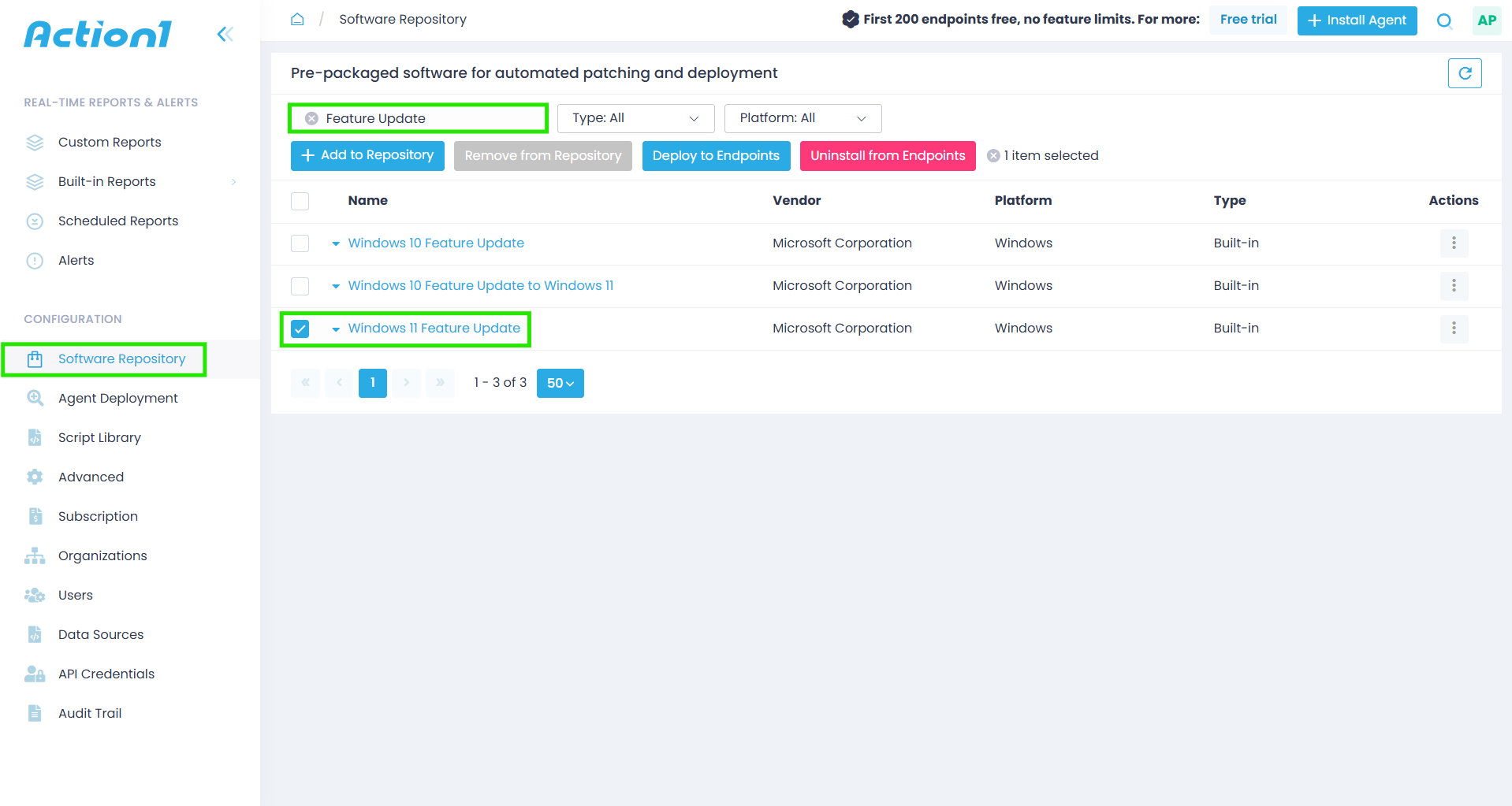
Step 3. Next, click on “Deploy to Endpoints.”
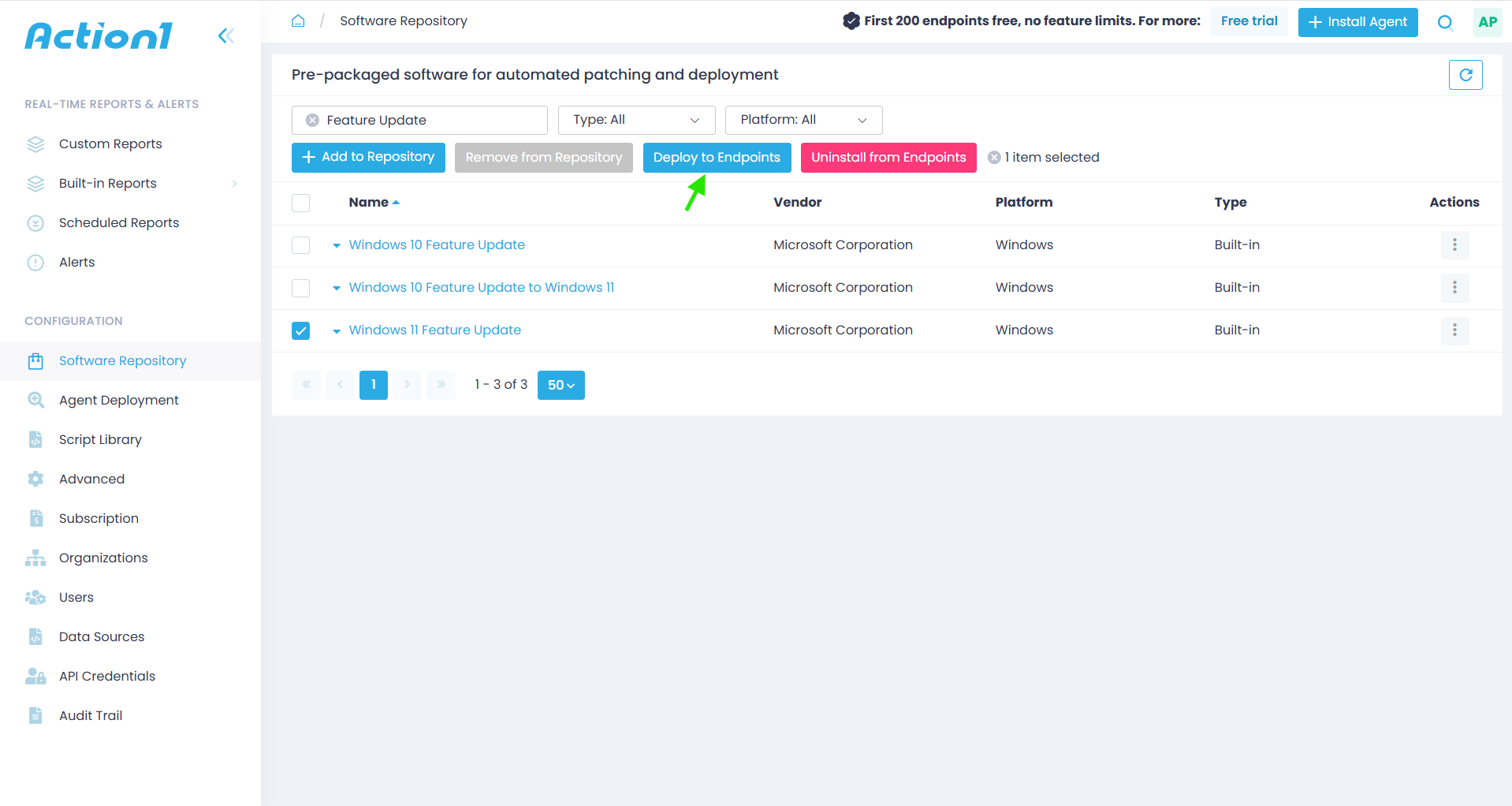
Step 4. Go through the deploy software wizard and run the update.
- Select your deployment scope by choosing between enterprise-wide implementation or a targeted group rollout. This strategic approach enables thorough testing of Windows updates in a controlled environment before full network deployment.
- The platform offers flexible scheduling options to accommodate your operational requirements.
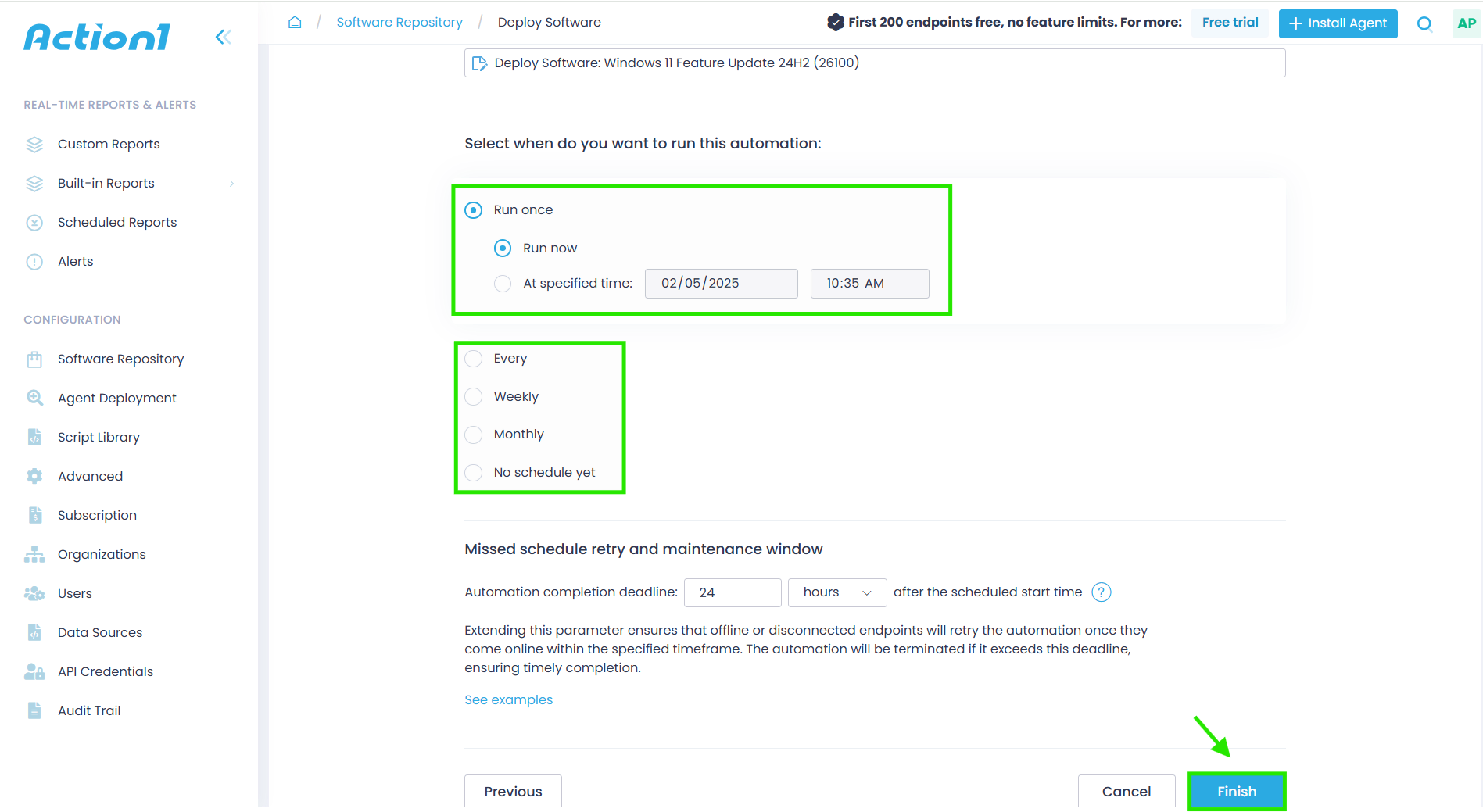
Step 5. Click “Finish” and let Action1 install the update, bringing your endpoints up to date.
How to Reduce Windows Update Failure Risks
In practice, it’s possible to reduce Windows Update failure risks. You just have to keep enough free storage space, keep your drivers and firmware up to date, test important updates before rolling them out, monitor what happens after an update runs instead of assuming it worked, and, if you’re managing more than one device, deploy in phases instead of pushing everything out at once. The truth is that none of these guarantees a perfect update every single time, but it definitely removes most of the reasons updates fail in the first place, which beats fixing the same problem over and over again after it’s already happened.
Keep Enough Free Disk Space Available
Keep free disk space available at all times, not just before an update deployment, because this doesn’t only prevent update failures, it also improves your machine’s performance. Don’t lock yourself into one fixed number like 20GB either, since the real requirement shifts depending on the update. Quality updates typically need 2 to 3GB, while feature updates can need 6 to 11GB or more, as covered earlier in this guide. A hard drive or SSD running low on free storage slows your entire system down, not just Windows Update. Turn on Storage Sense, a built-in Windows 11 feature, and set it to run automatically on a schedule. This way, by the time an update actually needs that extra room, Windows has already cleared it out on its own, so you’re not manually freeing up space after Windows already told you there isn’t enough.
Keep Drivers and Firmware Compatible
Keep your drivers and firmware compatible with the Windows version you’re about to install, especially before a feature update. Graphics, storage, chipset, network, BIOS, and UEFI updates can all matter when Windows changes deeper parts of your system (and by parts, I mean software parts of course). A common mistake some users make is to update drivers blindly once a newer version gets released. Instead, check your device manufacturer first. If a feature update keeps failing because of a driver conflict, Microsoft’s SetupDiag tool can often help identify the driver or app causing the block, instead of you replacing drivers one by one. And if a specific driver update is known to cause trouble, Microsoft’s “Show or hide updates” troubleshooter lets you block just that one update while everything else keeps installing normally. And for managed environments, review Windows compatibility reports before deployment. As mentioned earlier, Microsoft can also place safeguard holds on devices with known compatibility problems, which is a sign to fix the conflict rather than force the update through.
Test Updates Before Broad Deployment
When managing an organizational environment, it’s critical to test updates on a small group of non-critical endpoints first, before deploying them to all your systems. Create a group containing devices from different departments, including on-premises and remote ones. That’s necessary because no amount of testing on Microsoft’s end can account for every hardware combination, driver version, and third-party app running across your specific fleet, and a single incompatibility can cause instability across your endpoints even in an update that tested cleanly everywhere else.
Start with a small number of endpoints, confirm the update holds up, then expand from there across the rest of your company. If it’s just your own PC you’re managing, the Windows Insider Program’s Release Preview Channel does the same job at a smaller scale, letting you see how an update behaves before it ever reaches your main system.
Monitor Failed and Pending Updates
Use the built-in Windows 11 Reliability Monitor to see if an update actually finished. Just type “view reliability history” into the Start menu, and you’ll get a day-by-day timeline of every failure going back 28 days. Strangely, many people don’t even know this tool exists. It shows your system’s stability and gives you a visual timeline of software crashes, hardware failures, and update status: successful, pending, or failed.
Across a managed fleet, your endpoint management platform’s update reporting does the same job at scale. Watch last scan time closely, since a device that looks “behind” may have simply been offline for a few days, not actually failing. Twenty devices failing on the same KB and error code, though, that’s not bad luck. That’s a pattern worth pausing your rollout to investigate.
Use Phased Update Deployment for Business Devices
OS updates can cause unexpected crashes and system instabilities, so you must use phased update deployment to avoid these unpleasant surprises. Microsoft itself uses this exact staged-ring approach in Windows Autopatch, and patch management platforms like Action1 offer the same capability through update rings, letting you create as many rings, or groups of endpoints, as needed.
The first (zero ring) is a test environment, and the rest include a greater percentage of the total endpoints, so updates progress from ring to ring. But that happens only when these updates prove their stability, meeting the success rates and deployment counts that you set. Those that aren’t meeting them don’t progress. So problematic or unstable patches and updates get stopped from causing organization-wide issues or indefinite downtime. And all of that happens autonomously, so updates get deployed faster while at the same time minimizing the disruption risks.
Can I Skip Windows Update?
Yes, you can skip Windows updates, but this is not recommended. These updates are being developed and released with purpose. They are responsible for keeping your system secure, stable, and efficient.
Windows updates are enhancing your PC’s security through patching software vulnerabilities, which is arguably their most important function. It is a well-known fact that cyber threats become meaner, harder to find, and more destructive day by day.
Without regular updates, your system will become an easy target for malware, ransomware, and other cyber threats. Windows updates also fix software bugs that cause crashes or other performance issues, ensuring your PC runs smoothly. On top of that, they often introduce new features, improvements, or major updates, like transitioning from Windows 10 to 11.
Many users skip updates to avoid downtime or interruptions, but the consequences can be devastating for their systems. Outdated software can lead to compatibility issues with applications and hardware used in daily operations. Therefore, skipping Windows updates is not advisable, as seemingly harmless delays can lead to security breaches or system crashes, revealing the criticality of regular updates.
These updates are a small investment of time that pays off in better security, performance, and peace of mind, so take action and set your system to update automatically once an update is released. If you are concerned about the interruptions that an update may cause, you have the option to schedule them to be installed overnight or at a convenient time.
Consider Action1 for Remote Update Deployment
Windows updates fail because of corrupted download files, low disk space, a stopped or malfunctioning service, driver or hardware conflicts, damaged system files, or third-party software blocking the installation. Each problem requires a different troubleshooting approach to get resolved, so the fastest path is to identify where the update is failing before applying a fix.
Start by restarting the computer and running Windows Update again. If that doesn’t work, reset the Windows Update components, check for driver or hardware conflicts, free up disk space, run the built-in troubleshooter, and stop and restart the Windows Update and BITS services when necessary. For damaged system files, you must run DISM followed by an SFC scan.
If you’re part of an IT team managing multiple endpoints, Action1 is often the fastest and easiest way to resolve Windows Update deployment problems at scale. It gives you centralized visibility into failed and missing updates and lets you automate remediation, retries, scheduling, and update deployment instead of troubleshooting systems one by one.
So, give Action1 a try if you need to install Windows updates to remote endpoints. Action1 is a risk-based patch management solution built to automate distributions of patches and updates across your entire fleet without the manual work you just read about. Get started right now with a free account for up to 200 endpoints, or watch the demo and discover how simple it can be to keep every device safe and current, no matter how many you manage.





