


Dashboard
The Dashboard is a central panel in Action1 console. It provides clear, high-level insights into all devices connected to your Action1 account and enables you to identify and resolve issues in seconds. Use the Dashboard to gain a comprehensive view of your managed infrastructure and assess the overall health of your environment.
The Dashboard offers a consolidated Enterprise-level view and the ability to switch between Organizations within the Action1 Enterprise.

From the Dashboard page, you can double-click any widget to drill down to more specific dashboards, run actions, or discover more details.
Overview
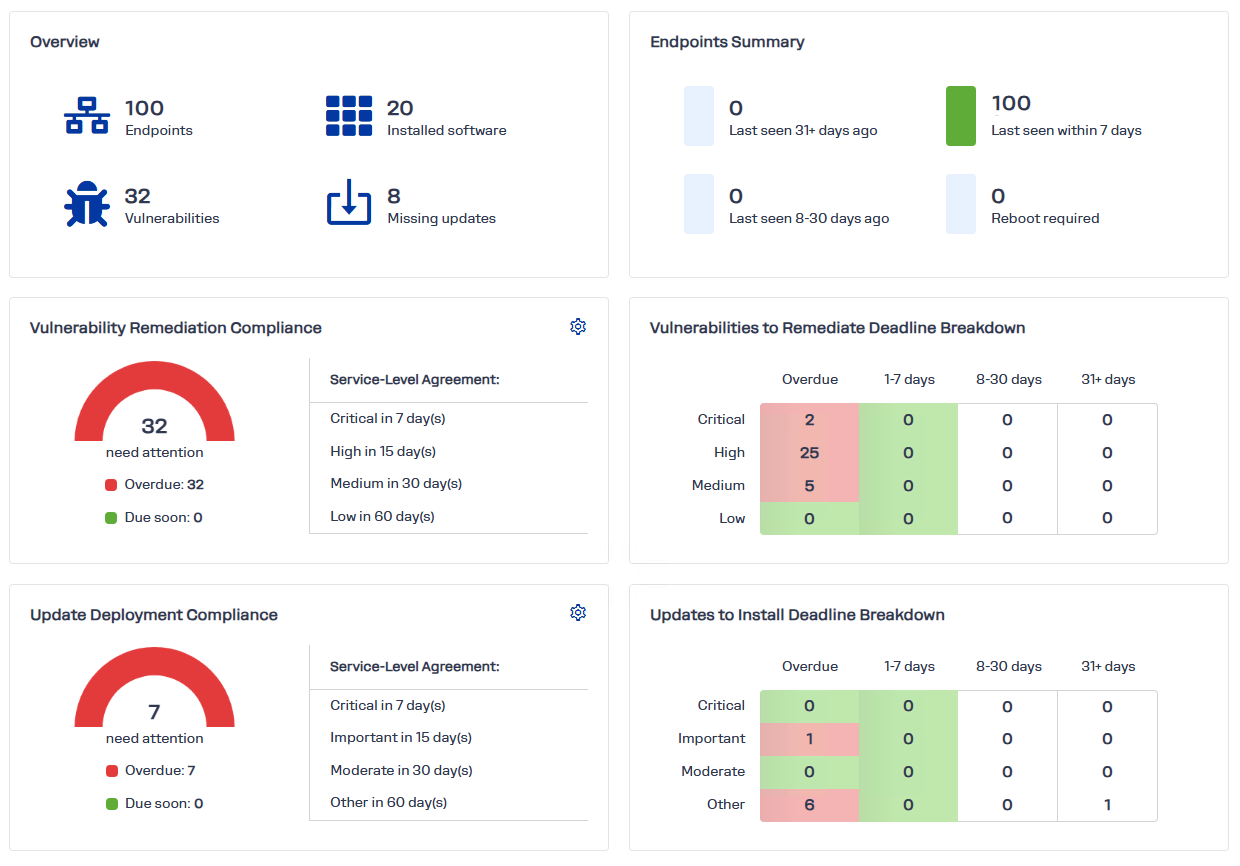
This widget provides a snapshot of your infrastructure, including the number of endpoints, installed applications, pending updates, and unresolved vulnerabilities. Click on its tiles to see more details.
Endpoint Summary
This widget shows connectivity statistics for your managed endpoints. Endpoints that remain offline or disconnected from Action1 for extended periods are more susceptible to security risks. This widget also lists endpoints pending a restart, helping you plan reboot operations as part of your workflows. Click on each category to view endpoint names and detailed information.
Vulnerability Remediation Compliance
This widget reports on the total number of “overdue” and “due soon” third-party vulnerabilities, giving you a clear view of your organization’s compliance status. To learn more about vulnerability management, see Detect Vulnerabilities.
Depending on the severity, each vulnerability has a recommended remediation timeframe. These timeframes are defined in the service-level agreements and can be adjusted based on your corporate patching policy. To focus on remediating the most crucial vulnerabilities, consider refining your SLAs, for example, extending the timeframes for low- and medium-severity CVEs while keeping tight deadlines for critical vulnerabilities. This approach allows you to quickly identify and prioritize the most urgent vulnerabilities.
Tip: Click on the “gear” icon to open the SLA configuration dialog directly from the widget. See also: Configure SLAs.

Once vulnerabilities are addressed, your organization’s compliance is reassessed. When your environment meets your security policy and all vulnerabilities are remediated, the dashboard turns green, indicating that your organization is fully compliant.
Vulnerabilities to Remediate Deadline Breakdown
This widget breaks down vulnerabilities by category and shows approaching deadlines. Use this information to prioritize and plan maintenance work efficiently.
Click on the widget to examine and remediate the existing vulnerabilities.
Update Deployment Compliance
This widget shows whether your endpoints receive Windows updates according to your SLAs. It highlights “overdue” and “due soon” updates, helping you stay on top of patch deployment.
To ensure fair performance measurement, consider fine-tuning your SLAs — such as extending deadlines for low-priority updates. Once updates are deployed within SLA timeframes, the widget turns green to confirm your compliant status.
Tip: Click on the “gear” icon to open the SLA configuration dialog directly from the widget. See also: Roll Out and Deploy Updates

the Updates to Install Deadline Breakdown
This widget outlines the update schedule and displays the number of updates awaiting installation in each category. Use this information to plan update rollouts and minimize disruption.
Click on the widget to examine the list of updates available for deployment on the managed endpoints.
Pending Update Approvals
This widget lists updates awaiting your review, including their type and count. Use it to organize and prioritize your patch management tasks effectively.
Click on the widget to examine the updates waiting for approval and rollout.